
Download SplitZilla – Free File Splitting Utility for Windows, Mac, Android & iOS
Overview: A Reliable File Splitting Tool for Modern Data Management
In today’s data-driven world, managing large files has become a common challenge. Whether you're transferring a 10GB video project, backing up critical documents, or sending a massive archive via email, file size limitations can disrupt your workflow. Enter SplitZilla, a lightweight yet powerful file splitting utility designed specifically to overcome these hurdles. Developed by Pukin Cat Industries, SplitZilla is a free software tool that enables users to break down large files into smaller, manageable segments—perfect for scenarios where storage space is limited or transfer platforms impose size restrictions.
Unlike traditional compression tools that reduce file size through algorithms, SplitZilla focuses on segmentation. It divides your original file into multiple parts, each under the 2GB threshold (2,147,483,647 bytes), making them compatible with most file systems, cloud services, and email providers. This approach ensures that no data is lost or altered during the splitting process. The tool is particularly useful for users who frequently work with high-resolution media, large databases, or software installations.
One of SplitZilla’s standout features is its seamless reassembly capability. Once the split parts are transferred or stored, you can easily rejoin them into the original file with just a few clicks. This makes it ideal for backup strategies, cross-device transfers, and long-term archiving. The application runs quietly from the taskbar, supports drag-and-drop functionality, and can be set to always stay on top, ensuring easy access without cluttering your desktop. With its intuitive interface and minimal system footprint, SplitZilla delivers robust functionality without compromising performance.
Key Features of SplitZilla: Simplifying Large File Management
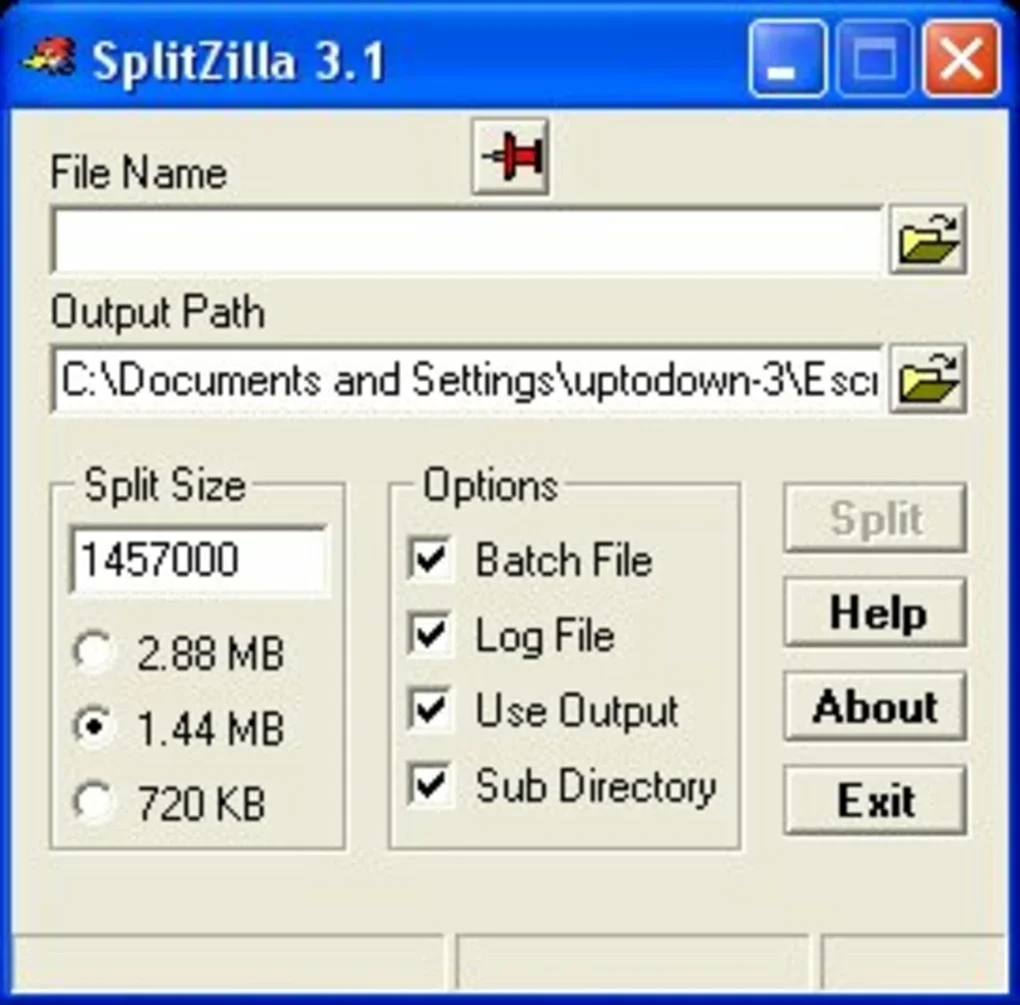
SplitZilla stands out in the crowded software market due to its focused functionality and user-centric design. At its core, the tool offers a suite of features that make handling large files effortless, even for non-technical users. One of the most practical features is the ability to split files into customizable sizes. While the software comes with three default split sizes—500MB, 1GB, and 2GB—users can also define a custom size to meet specific needs. This flexibility ensures compatibility with a wide range of platforms, including USB drives, cloud storage services like Google Drive and Dropbox, and email attachments.
Another major advantage is the drag-and-drop interface. Simply drag your large file onto the SplitZilla window, choose your preferred split size, and let the tool do the rest. This eliminates the need for complex command-line inputs or technical knowledge. Additionally, SplitZilla allows users to specify a custom output directory, so you can keep your split files organized in a dedicated folder. This is especially helpful when managing multiple projects or backups.
For users who value efficiency, the reassembly feature is a game-changer. After transferring all split parts, you can select any one of the fragments, and SplitZilla will automatically detect and rejoin the rest into the original file. This eliminates the risk of missing parts or incorrect file order.
The tool also supports taskbar integration, meaning it runs in the background and can be accessed instantly. You can even set it to always stay on top, which is helpful during multi-step file transfers or when working with multiple windows. With these features, SplitZilla isn’t just a file splitter—it’s a complete data management solution.
How to Install and Use SplitZilla on Windows, Mac, Android, and iOS
Getting started with SplitZilla is quick and straightforward, regardless of your operating system. The software is available for Windows, Mac, Android, and iOS, making it a versatile choice for users across devices. To begin, visit the official website and download the appropriate version for your platform. The installation process is simple: run the installer, follow the on-screen prompts, and you’ll be ready to use SplitZilla in under a minute.
Once installed, launch the application. You’ll notice it appears in the system tray (taskbar on Windows, menu bar on Mac), indicating it’s running in the background. To split a file, simply drag and drop it onto the SplitZilla window.
A pop-up will appear, allowing you to choose the split size—either one of the default options or a custom value. You can also select a destination folder for the split files. Click “Split,” and the process begins instantly.
After splitting, the resulting files will be named with a sequential suffix (e.g., file.part001, file.part002) to maintain order. When reassembling, locate any one of the split files, open it with SplitZilla, and select “Rebuild.” The tool will automatically detect all parts and reconstruct the original file. This process is fast, secure, and error-free. For added convenience, SplitZilla supports right-click context menu integration on Windows, allowing you to split files directly from File Explorer. On mobile devices, the app offers a clean, touch-friendly interface for managing split files on the go.
Pros and Cons: Is SplitZilla Right for You?
- Pros:
- Free to download and use with no hidden fees
- Supports multiple platforms: Windows, Mac, Android, iOS
- Drag-and-drop interface for effortless file handling
- Customizable split sizes with default options for convenience
- Seamless reassembly of split files with no data loss
- Minimal system resource usage
- Taskbar and always-on-top functionality for easy access
- Cons:
- Only available in English (no multilingual support)
- No built-in encryption for split files (security-conscious users may need additional tools)
- Mobile app lacks advanced file management features compared to desktop version
- No command-line interface for automation (may limit power users)
- Reassembly requires all parts to be present; missing files result in failure
Frequently Asked Questions (FAQ)
Can I split files larger than 2GB with SplitZilla?
Yes, SplitZilla can split files of any size. However, each individual split part is limited to 2,147,483,647 bytes (just under 2GB) to ensure compatibility with most file systems and transfer platforms.
Is SplitZilla safe to download and use?
Yes, SplitZilla is a secure, free software developed by Pukin Cat Industries. It does not contain ads, malware, or tracking tools. Always download from the official website to ensure authenticity.
Can I reassemble split files on a different computer?
Yes, as long as you have all the split parts and SplitZilla installed on the new computer, you can reassemble the file without issues. The tool preserves file integrity during splitting and reassembly.
Does SplitZilla work with cloud storage services?
Absolutely. SplitZilla is ideal for uploading large files to cloud platforms like Google Drive, Dropbox, or OneDrive, which often impose file size limits. Splitting ensures smooth uploads and downloads.
Is there a version of SplitZilla for Linux?
Currently, SplitZilla is only available for Windows, Mac, Android, and iOS. There is no official Linux version, but users may explore compatibility layers like Wine for limited functionality.
Final Verdict: A Must-Have Tool for File Management
If you frequently deal with large files and face limitations in storage, transfer, or sharing, SplitZilla is an essential tool to have. Its intuitive design, cross-platform support, and reliable splitting and reassembly features make it a standout choice among file utilities. Whether you're a student, content creator, IT professional, or casual user, SplitZilla simplifies complex file management tasks with minimal effort.
While it lacks some advanced features like encryption and command-line support, its core functionality is rock-solid and free of charge. The ability to split files into manageable parts and reassemble them seamlessly without data loss is invaluable. With regular updates and a strong focus on user experience, SplitZilla continues to evolve.
Download SplitZilla today and take control of your large files—effortlessly, securely, and for free.
CTA: Click here to download SplitZilla now and start splitting files in seconds.







